macOS Keystroke Visualizer
Keyty is a native macOS keystroke visualizer that displays the keys and keyboard shortcuts you press directly on screen.
Make your keyboard input visible during screen recordings, software tutorials, live demos, presentations, and streams.
Show your keystrokes on screen
Key presses normally happen invisibly. Your audience can see what happens inside an app, but they cannot always tell which key or shortcut caused it.
A keystroke visualizer solves this by displaying your input as you type.
With Keyty:
- Download and open Keyty.
- Grant the required macOS input permission.
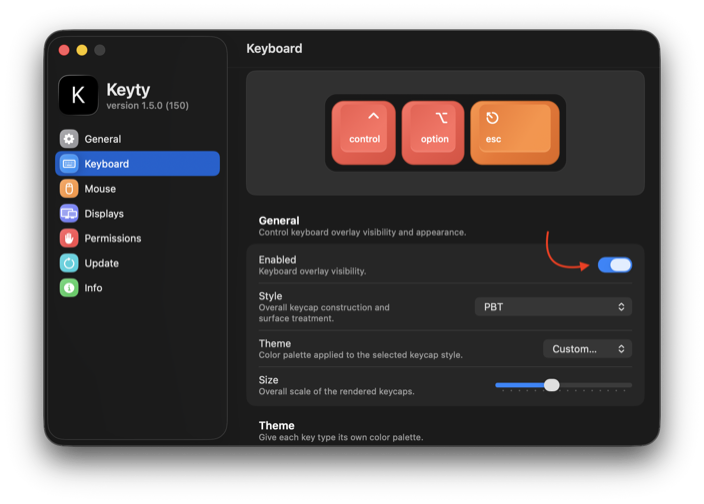
- Choose how your keystrokes should appear.
- Start typing and your key presses appear on screen.
Make every key press visible
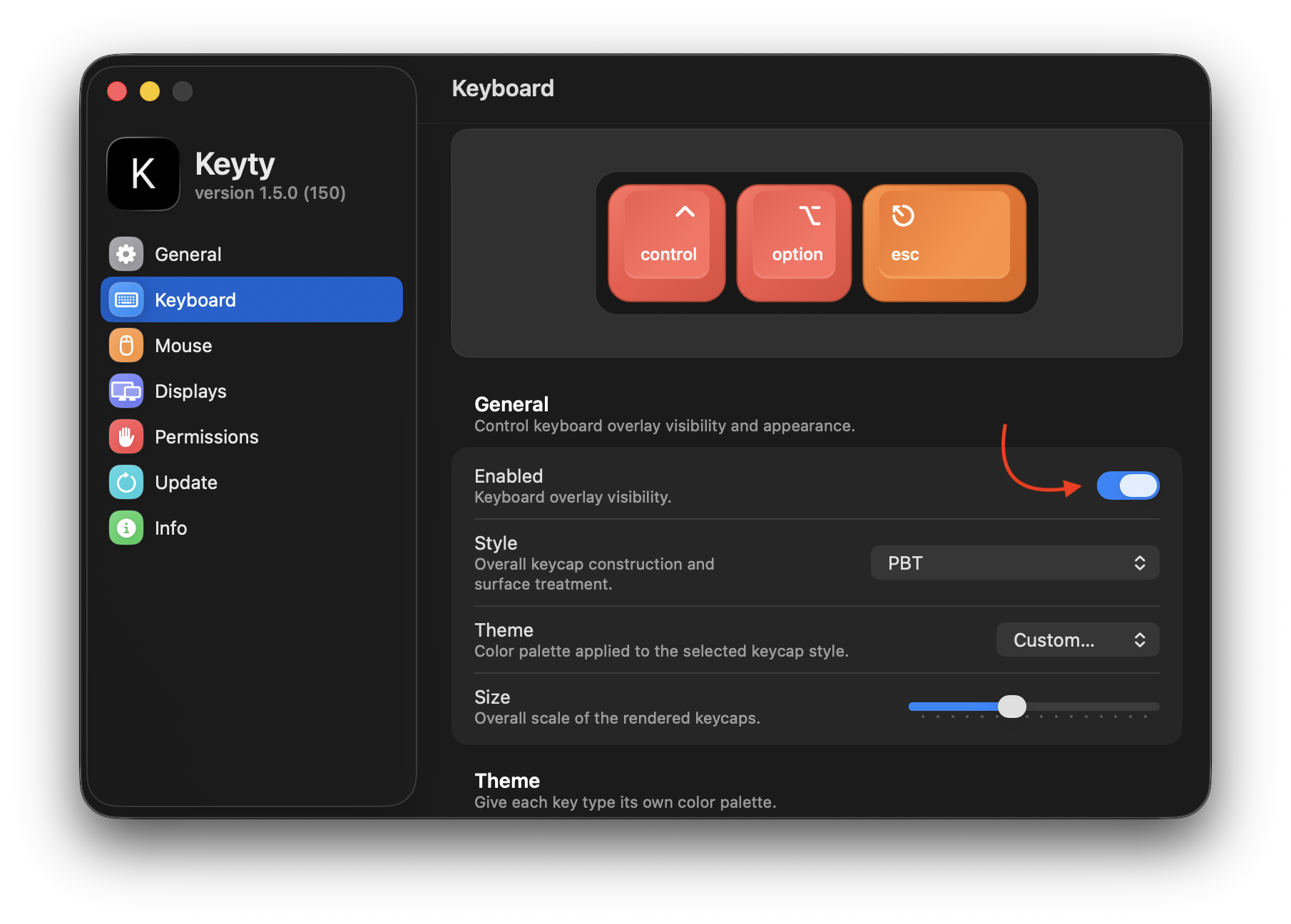
Show individual keys as they are pressed so viewers can follow keyboard-driven workflows without guessing what you are doing.
Examples:
AReturnEsc⌘ + C⌘ + ⇧ + 4
This is particularly useful when the keyboard input itself is an important part of what you are demonstrating.
Show keyboard shortcuts clearly
Keyboard shortcuts can make a workflow much faster, but they are almost invisible to somebody watching.
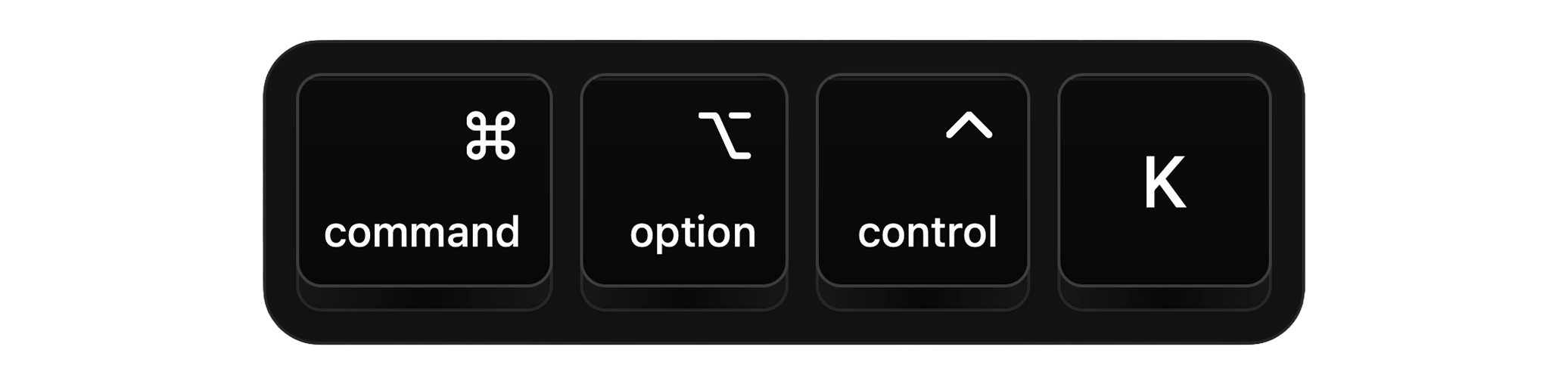
Keyty displays modifier combinations together, making commands such as ⌘ + C, ⌘ + K, ⌥ + ←, or ⌘ + ⇧ + 4 easy to recognize. Viewers can immediately connect the shortcut you pressed with the action happening on screen.
When a keystroke visualizer is useful
A keystroke overlay is useful whenever viewers need to understand not only what happened, but what you pressed to make it happen.
- Screen recordings — expose otherwise invisible keyboard actions.
- Software tutorials — help viewers reproduce shortcuts themselves.
- Coding demos — make keyboard-heavy workflows easier to follow.
- Product demonstrations — reveal shortcuts without interrupting the presentation.
- Livestreams — let viewers follow your input in real time.
- Presentations — avoid having to verbally explain every keyboard command.
Keep your keystrokes easy to read
Keystrokes should be noticeable without distracting from the content you are demonstrating.
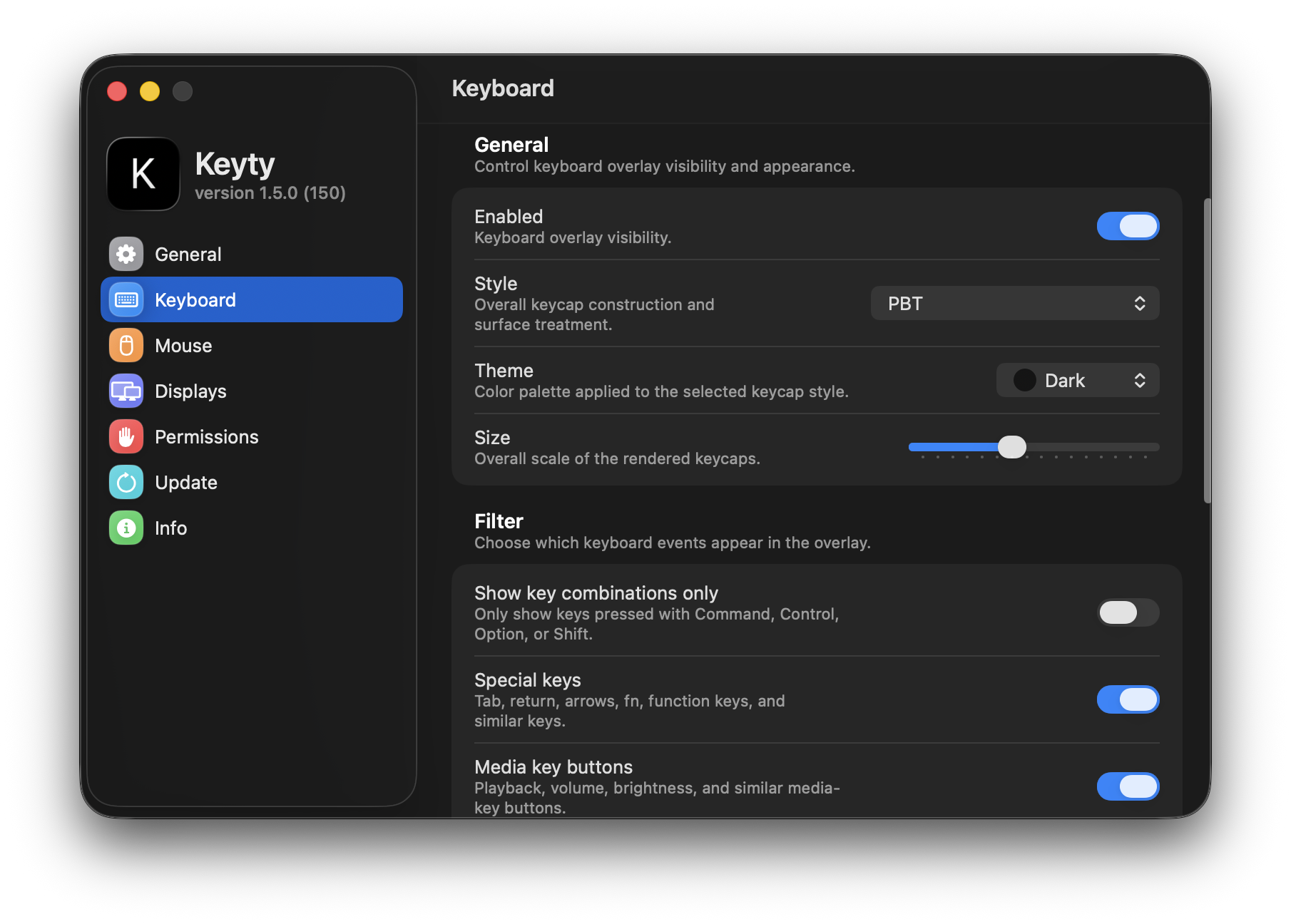
Adjust the overlay’s position, appearance, size, and display behavior so keys remain readable without covering important parts of the interface. Different visual styles let you choose between a subtle overlay and something more prominent for tutorials or presentations.
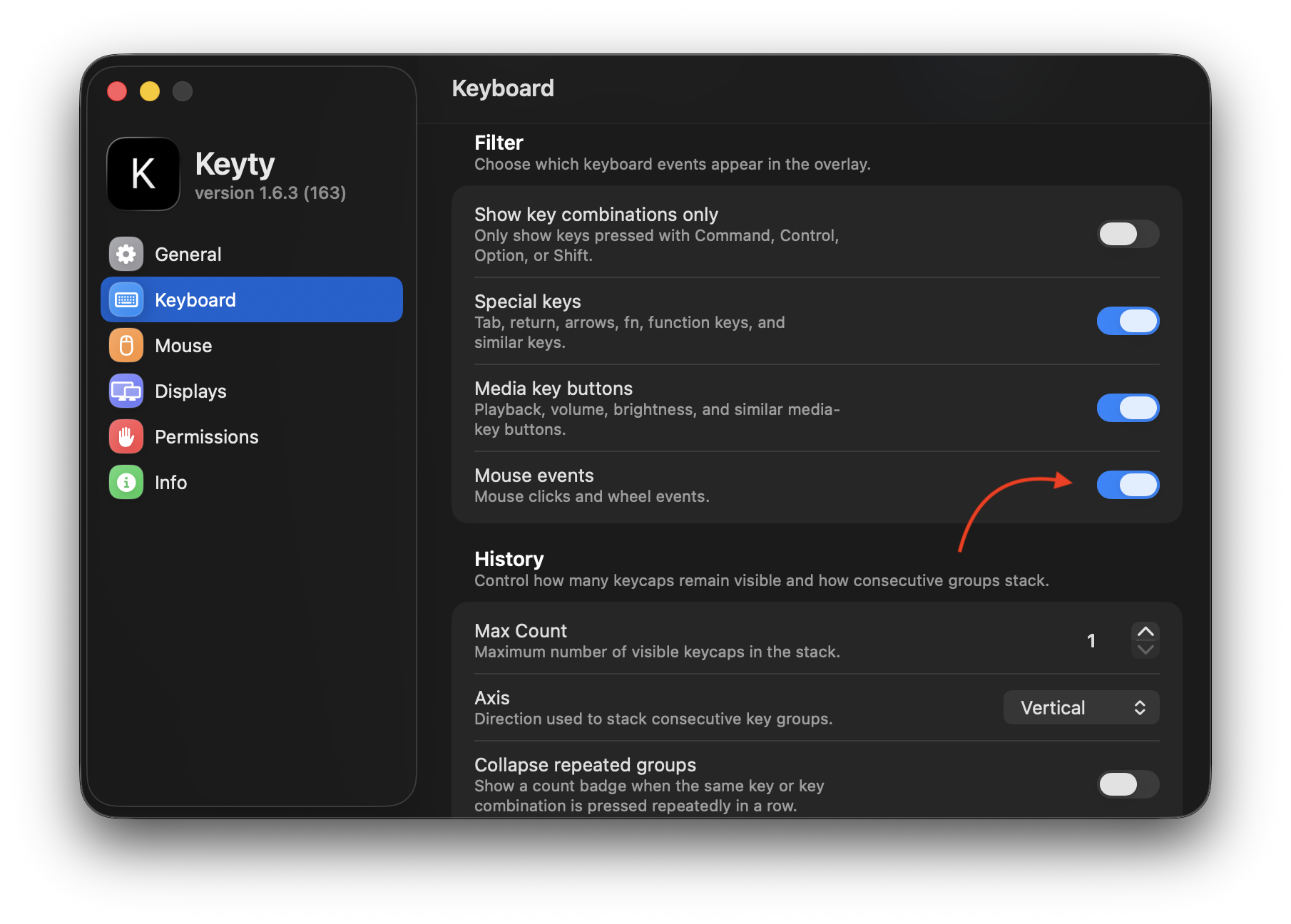
Show mouse events alongside keystrokes
Keyty can display mouse events together with your keyboard input, making it easier for viewers to follow the full interaction.
Show clicks alongside shortcuts and key presses without switching to a separate visualization style.
What happens when you type sensitive information?
Keyty visualizes input locally on your Mac and does not transmit captured keystrokes off-device. However, anything displayed by the overlay may also become visible in a screen recording, stream, or presentation. Avoid entering sensitive information while displaying your keystrokes.
macOS may prevent some secure input from being captured, but you should not rely on this as a privacy mechanism.
Built specifically for macOS
Keyty is a native macOS application designed around Mac keyboard shortcuts, modifier keys, permissions, and input behavior. It is free and open source and works independently of the application you are demonstrating.
Keystroke visualizer FAQ
What is a keystroke visualizer?
A keystroke visualizer displays the keys you press as an on-screen overlay, allowing other people to see your keyboard input.
How do I show keystrokes on screen on a Mac?
Run Keyty, grant the required macOS permission, enable the keyboard overlay, and start typing. Your keystrokes will appear on screen in real time.
Can Keyty show keyboard shortcuts?
Yes. Keyty can display combinations containing modifier keys such as Command, Option, Control, and Shift.
Can it show individual keys?
Yes. Keyty can visualize individual key presses as well as shortcut combinations.
Can I use it while recording my screen?
Yes. Keyty is designed for screen recordings, tutorials, presentations, demos, and livestreams.
Can Keyty show mouse input too?
Yes. Keyty also supports visualization of mouse clicks and scrolling.
Does Keyty record my keystrokes?
Keyty visualizes input locally and does not transmit captured keyboard input off your Mac.
Is Keyty free?
Yes. Keyty is free and open source.
Which macOS versions are supported?
Keyty supports macOS 11 and later.
Make your keystrokes visible
Show the keys and keyboard shortcuts you press while recording, teaching, presenting, or demonstrating something on your Mac.