macOS Keyboard Visualizer
Keyty is a macOS app that shows keystrokes, keyboard shortcuts, mouse clicks, and scrolling on screen in real time. If you want a simple way to make keyboard input visible during a recording, demo, tutorial, livestream, or presentation, this page explains the practical setup.
Download for macOS · Install with Homebrew · View on GitHub
How to show keystrokes on screen on Mac
The easiest way to show keystrokes on screen on macOS is to use an input overlay that runs independently of the app you are demonstrating. With Keyty, the process is straightforward.
- Download and install Keyty from the latest release or with Homebrew.
- Grant the macOS Accessibility permission required for live input visualization.
- Choose what you want to show: keyboard input, shortcuts, mouse clicks, and scrolling.
- Start your recording, demo, stream, or presentation and let Keyty display the input on screen.
Show individual keystrokes or keyboard shortcuts
Different workflows need different levels of detail. Sometimes the exact keys matter, and sometimes the important part is the shortcut that triggered the action.
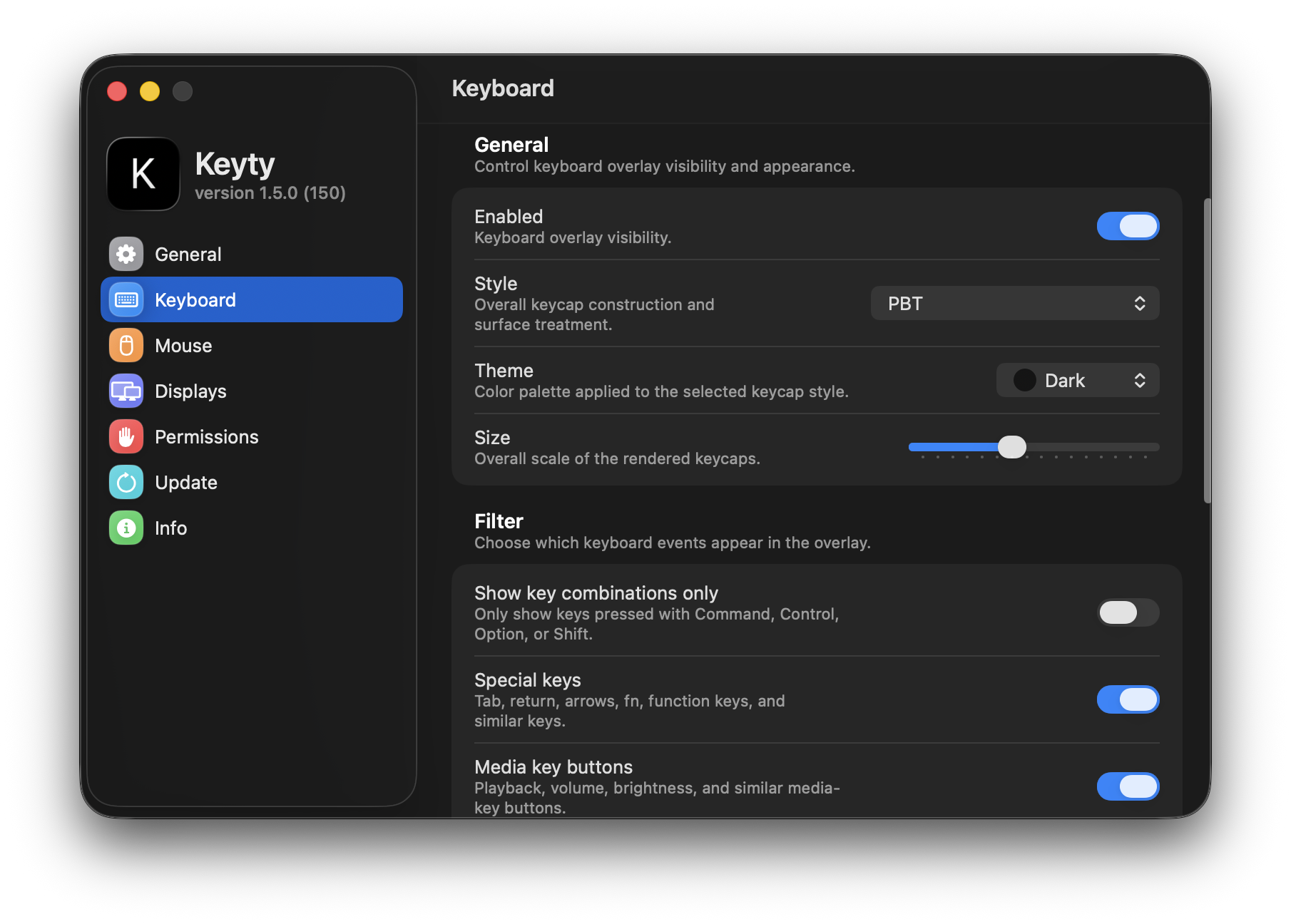
Showing individual keystrokes is useful when you are demonstrating typing, text entry, or a keyboard-driven workflow where each key matters. Showing shortcuts is cleaner when the viewer mainly needs to understand commands like ⌘B, ⌘S, ⌘K, or ⌘⇧4.
In many recordings, a shortcut-focused overlay is easier to follow than displaying every typed character. It keeps attention on the action that changed the app rather than the raw input.
Show every key
Best for typing demos and text entry.
Show shortcuts only
Best for commands and tutorial steps.
Make keyboard shortcuts easier to follow
In software demos and tutorials, the result of a shortcut is usually visible, but the shortcut itself is not. Showing the keys on screen helps viewers connect the command with the result immediately.
⌘Bmakes selected text bold.⌘Sshows that a save action happened intentionally, not automatically.⌘⇧4makes a screenshot workflow easier to understand in macOS tutorials.
These are small cues, but they make recordings easier to learn from because the viewer no longer has to guess what was pressed.
When a keyboard visualizer is useful
A keyboard visualizer is most useful when the input matters as much as the result.
- Screen recordings where viewers need to see what triggered the change.
- Software tutorials that teach shortcuts people should be able to repeat.
- Product demos with fast keyboard-driven workflows.
- Livestreams and presentations where you do not want to narrate every shortcut aloud.
Keep the keyboard overlay readable
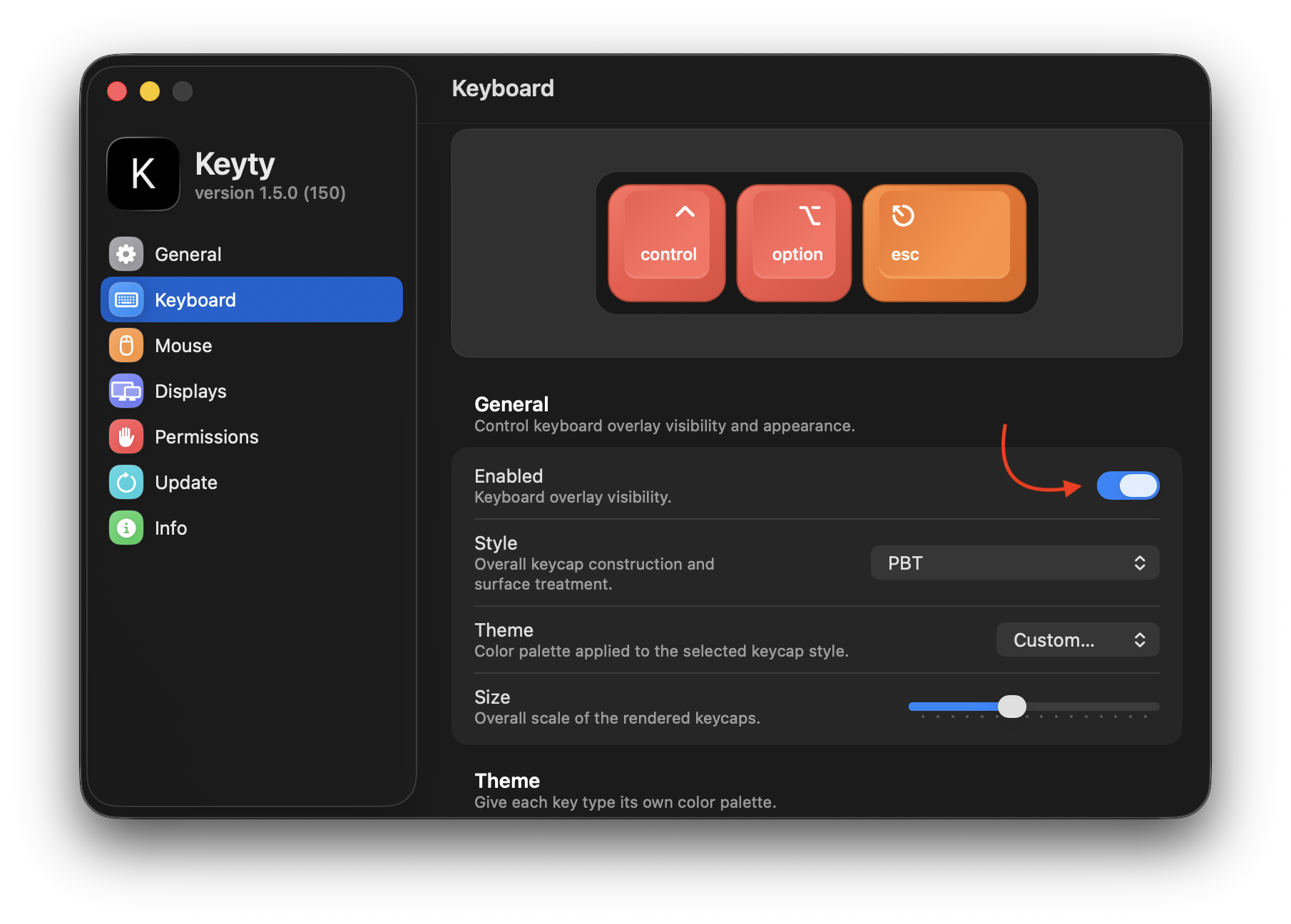
A useful keyboard overlay should be easy to notice without covering the content being demonstrated. The main things to adjust are size, position, contrast, style, and how long the overlay stays visible.
If the overlay is too small, viewers will miss it. If it is too large or badly placed, it will cover the interface you are trying to explain. Clear keycaps, readable contrast, and sensible placement usually matter more than decorative styling.
For recordings and livestreams, it is also worth tuning the display behavior so shortcuts stay visible long enough to be understood without lingering longer than needed.
Show keyboard and mouse input together
This page focuses on keyboard visualization, but many workflows mix shortcuts with clicks, pointer movement, and scrolling. That is where Keyty differs from a keyboard-only solution.
You can use it to show the keyboard command that triggered part of the workflow, then keep the mouse visible for the rest of the interaction. That is often a better representation of how real macOS demos actually work.
What happens when you type sensitive information?
Keyty is designed to visualize input locally on your Mac. It does not transmit captured input off-device, but you should still avoid entering sensitive information while it is active, especially when recording or sharing your screen.
Keyty does not include its own detection or filtering of password fields or other secure text fields. macOS may block some secure input from being captured, but that is operating-system behavior and may not apply in every situation.
Built for macOS
Keyty is a native macOS app, so its permissions, input handling, and settings follow the conventions of the platform. That makes it a more natural fit for Mac recording, presentation, and demo workflows than a generic overlay tool.
Keyboard-focused FAQ
Does Keyty work with all apps?
It works independently of the foreground app, though exact behavior can vary by app and system conditions.
Can it show only keyboard shortcuts?
Yes. You can tune the overlay so shortcuts are emphasized over normal typing.
Does it show normal typing?
Yes. It can show individual keystrokes as well as shortcut combinations.
Does Keyty show passwords?
Avoid entering sensitive information while it is active. macOS may block some secure input, but that behavior is not guaranteed.
Can it show mouse clicks?
Yes. It can also show mouse clicks, pointer activity, and scrolling.
Does it work during screen recording?
Yes. It is designed for recordings, demos, tutorials, livestreams, and presentations.
Does Keyty send my keyboard input anywhere?
No. Keyty is designed to visualize input locally on your Mac.
Is Keyty free?
Yes. Keyty is free and open source.
Which macOS versions are supported?
Keyty supports macOS 11 and later.
Show keystrokes clearly on your Mac
Use Keyty for tutorials, demos, recordings, and livestreams.